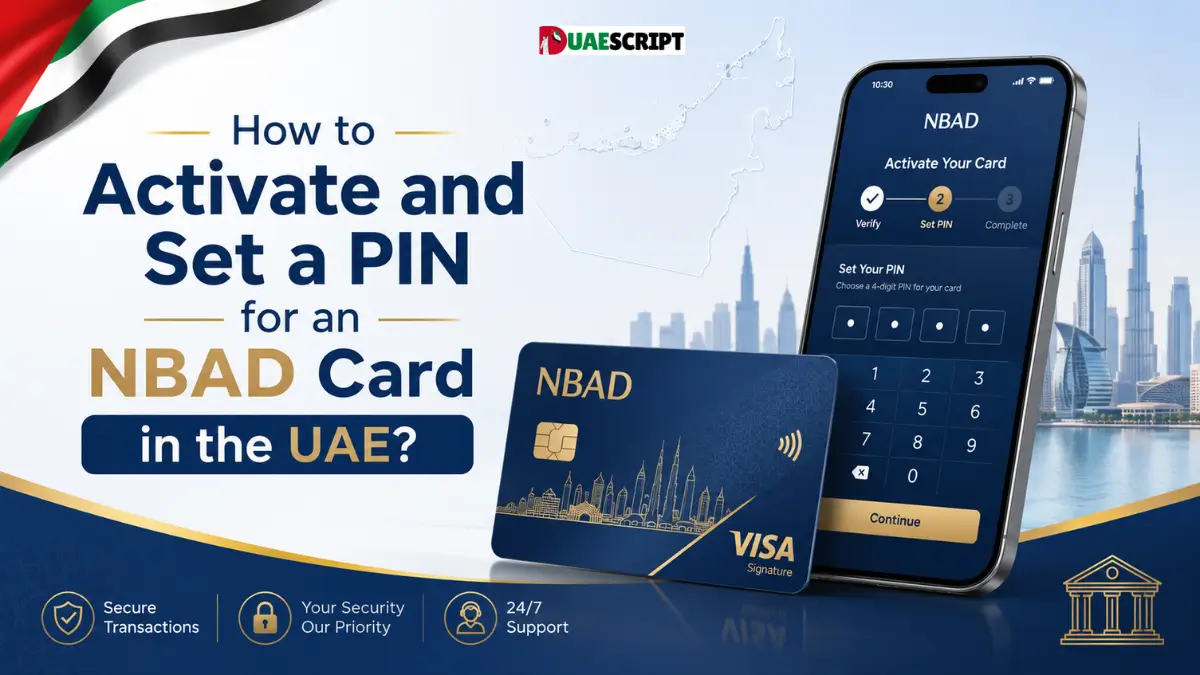
The first thing to know about how to activate and set a PIN of an NBAD card in the UAE is that NBAD is now a part of First Abu Dhabi Bank (FAB). In 2017, the National Bank of Abu Dhabi and First Gulf Bank merged to form First Abu Dhabi Bank, and the current card services and digital banking support are mostly available via FAB channels.
The most official way to activate most current FAB debit and credit cards is via the FAB Mobile app. You can also set up the transaction PIN during activation, which you will use for card payments and, if applicable, ATM payments.
Here is the complete process.
Is an NBAD Card Now a FAB Card?
After the merger with FGB, NBAD is no longer a banking brand. The two banks merged to form First Abu Dhabi Bank.
So, if a person is looking online for “NBAD card activation” he or she might need to use the existing FAB Mobile app, FAB customer support or FAB ATM network, depending on the type of card they have.
This is significant because older online tutorials might still mention NBAD applications, phone numbers, or activation processes that are outdated.
Why Card Activation and PIN Setup Matter?
A new card is usually required to be activated before you can use the features it offers. A personal transaction PIN also helps to secure card transactions by asking for authentication when a payment terminal or ATM asks for it.
FAB states that its cards use PIN authentication as an important security measure for transactions. The bank also recommends that customers never give their PIN to merchants, bank staff, callers, friends or family.
Self-activating the card also gives you the option to set a PIN that you can remember rather than relying on a temporary PIN sent to you via another method.
What You Need Before Activating Your NBAD/FAB Card?
-
Keep your new physical card with you before you begin, as you will need the expiry date.
-
You should also be able to log in securely and have access to the FAB Mobile app. Existing customers can register for mobile banking with their customer number, debit card number or credit card number, depending on their situation, FAB states. Current mobile banking registration also uses additional identity verification measures.
It helps to have:
-
Your new FAB debit or credit card.
-
The expiration date of the card.
-
Access to FAB Mobile
-
Your FAB Mobile username and password.
-
A secure internet connection is required.
Remember that the card PIN and the FAB Mobile login PIN are not necessarily the same thing.
How to Activate an NBAD/FAB Debit Card and Set the PIN?
FAB’s official debit card activation guide offers a simple process via FAB Mobile.
Step 1: Open the FAB Mobile App.
-
Sign in to your FAB Mobile account and go to the Cards screen.
-
You should see your new debit card in the card management area. You might see a message on the app that says “Please activate the card”.
-
Tap Activate Card.
Step 2: Enter the Card Expiry Date
-
Check the expiration date on your new card and type it in exactly as it is written in the app.
-
This step is to ensure that you have the physical card that is being activated.
Step 3: Make Your New Card PIN
-
The app will prompt you to set up a new debit card PIN.
-
The official FAB activation guide shows a 4-digit card PIN. Choose a number that you can remember but that would be difficult for another person to guess.
-
Don’t use common combinations related to personal data.
Step 4: Verify PIN
-
Type in the same 4-digit card PIN once more.
-
Ensure that both entries are identical. If you enter a different number during confirmation, you may not be able to proceed to the next step.
Step 5: Approve the Activation
-
FAB Mobile will ask you to approve the request using its in-app authentication process.
-
The official debit card guide includes a swipe-to-approve step.
Step 6: Enter Your FAB Mobile PIN
-
The app then prompts for the 6-digit PIN that is used to log in to FAB Mobile, which is the documented debit card activation process.
-
This is a key difference: the 6-digit number at this point is your mobile banking authentication PIN, and the new transaction PIN you set up for the card is 4 digits.
Step 7: Check the Confirmation
-
Once verified successfully, FAB Mobile should confirm that your debit card has been activated and that the new card PIN has been set.
-
Your card is now ready to use based on the services and controls you have enabled on your account.
How to Activate an NBAD/FAB Credit Card and Set the PIN?
The credit card activation process is very similar.
Fab’s official guide says to open the Cards section, choose the new credit card, tap Activate Card, enter the expiry date, set a new 4-digit card PIN, confirm it, and approve the request in the app. The app then shows confirmation if it is successful.
The basic sequence is:
Cards → Activate Card → Enter Expiry Date → Set PIN → Confirm PIN → Approve Activation
The app screen and authentication process may change as software updates are released, so follow any extra verification instructions that appear on your device.
Card PIN vs. FAB Mobile PIN: What Is the Difference?
A frequent problem when activating FAB cards is using two different PINs.
Your card PIN
The PIN for the card transaction is the 4-digit number you set up for the physical card. It can be requested when making purchases at PIN-enabled payment terminals or carrying out supported ATM transactions.
Your FAB Mobile PIN
The banking application is secured with your FAB Mobile PIN. FAB’s guide demonstrates the use of a 6-digit mobile login PIN in the official debit card activation workflow as part of the final authentication process.
Never enter your new 4-digit card PIN when prompted by a screen asking for your mobile PIN. Always read the instructions displayed in the app carefully.
Is it possible to set your FAB Card PIN at an ATM?
For standard card activation, FAB Mobile offers the most official and documented activation and PIN setting process.
However, ATM PIN services may also be available for certain debit card products. For instance, FAB explicitly mentions that the PIN can be set at a FAB ATM or via the mobile app for those who have their World Elite Debit Card. This may be subject to the availability of your specific card and account type.
If a standard card is newly issued, the activation option included in FAB Mobile is typically the most straightforward method since activation and PIN creation can be done in the same documented process.
If your NBAD/FAB card is not working, Here are Some Steps you can Take
Sometimes, the card activation process may fail due to incorrect information, outdated app, registration problems, or a temporary technical issue.
Check the expiry date
Please ensure that the expiry date you enter in FAB Mobile is the same as the one on the card.
Update the FAB Mobile app
The older version of the app might not function properly with the latest authentication capabilities. If there is a temporary maintenance, FAB recommends users to update the app or to try again later if they have issues accessing their mobile banking.
Make sure you chose the right card
If a customer has more than one debit or credit card, they should make sure they are using the new card and not the old one.
Confirm your mobile banking access
Be sure to know the PIN to access FAB Mobile. The login screen offers a Forgot PIN option if you cannot access the app, which will help you regain access to your mobile banking.
Contact FAB directly
If the issue persists, reach out to the bank through official channels, not an unofficial website or social media account.
For customers in the UAE, FAB’s number is 600 52 5500 and for customers outside the UAE, it is +971 2 681 1511.
Important PIN and Card Security Tips
Always keep your card PIN confidential.
FAB’s security tips recommend that customers never give their PIN or card to anyone, even if they think they are talking to a bank employee. The bank also advises customers to not use the same PIN on multiple cards and to check their accounts for any unauthorized transactions.
Select a PIN that is easy to remember but not something like:
-
1234
-
0000
-
Your birth year
-
Numbers easily connected to your personal information
Do not write your PIN on the card or keep it in a place where it can be easily discovered with the card.
It’s also important to not enter sensitive banking information after clicking links in unsolicited emails or messages. When handling your card, always use the official FAB Mobile app and official bank channels.
Common pitfalls to avoid when activating a Card
There are a few simple mistakes that can lead to confusion.
-
First, don’t look for an old “NBAD mobile banking app. The existing NBAD-related retail banking services are run under FAB.
-
Second, don’t use your 4-digit card transaction PIN as your FAB Mobile PIN.
-
Third, do not provide your card number, CVV, PIN, password or authentication information to anyone who contacts you out of the blue.
-
Lastly, only turn on the card that you have in your hands and verify that the information is correct on the card in your banking app.
What to do after you activate your card?
After activation, review the security and transaction options that are available for your card.
Currently, FAB Mobile enables customers to control online transactions, in-store payments, international purchases, and ATM cash withdrawals. Customers can also freeze a card or use block-and-replace features when necessary.
It is important to check these settings right after activation to ensure that you don’t enable any unnecessary transaction types until you need them.
Additionally, ensure that your registered contact details are kept up to date so that you can receive vital banking information and security alerts.
Conclusion
Since NBAD was merged with FAB in 2017, the process of activating and setting a PIN for an NBAD card in the UAE is now primarily a matter of using the services of the bank.
In the officially documented mobile process, open FAB Mobile, select your new card, choose Activate Card, confirm the expiry date, enter and confirm your 4-digit card PIN, and complete the in-app authentication requested. Debit and credit card workflows are a little different, so follow the instructions displayed for your card.
Most importantly, do not share your card PIN with anyone and contact FAB via official channels if activation is not successful.
FAQ’s
How to reactivate my old NBAD card in UAE?
As NBAD became part of First Abu Dhabi Bank, the activation of the cards is generally done via FAB services, including FAB Mobile.
Is it possible to use the FAB Mobile app to activate my NBAD card?
Yes. The activation and PIN setup are demonstrated in the current FAB debit and credit card activation guides using the FAB Mobile app.
How to set a PIN on my FAB debit card?
Open your new card in FAB Mobile, click Activate Card, check the expiry date, and set and confirm your 4-digit card PIN.
What is the maximum number of digits that can be used in a FAB card PIN?
New FAB debit and credit cards have a 4-digit transaction PIN displayed on the card activation guides.
Do my FAB Mobile PIN and my card PIN match?
No. The debit card activation guide separates the 4-digit card PIN from the 6-digit PIN required to log in to FAB Mobile.
Is it possible to change my FAB debit card PIN at an ATM?
Depending on the type of card, some FAB debit card products allow the PIN to be set up at a FAB ATM.
How do I get my FAB card to activate?
Verify the card expiration date, update the FAB Mobile app, verify that you have the right card, and ensure that mobile banking access is functioning.
What if I lose my FAB Mobile PIN?
On the FAB Mobile login screen, click Forgot PIN and follow the instructions to recover.
What is the FAB customer service number in UAE?
FAB has 600 52 5500 as its customer contact number in UAE.
Do I need to give my card PIN to FAB customer service?
According to No. FAB’s security advice, customers should never give their card PIN or banking password to anyone.
Related:
Quick & Simple Guide to PPC NBAD Balance Check in UAE
NBAD Balance Inquiry Online in UAE | How to Check FAB, Ratibi, Salary Card and Prepaid Card Balance?
Change NBAD Salary ATM Card PIN (Complete Step-by-Step Guide)
Share this article

Written by : Barika Awad
Barika Awad writes for UAE Script, specializing in UAE finance and lifestyle content — from bank services to visa and residency guides. She's passionate about making official processes easier to understand for expats and residents alike.
Follow us
A quick overview of the topics covered in this article.
Latest articles

October 23, 2026

October 23, 2026